Create Plane's Relations
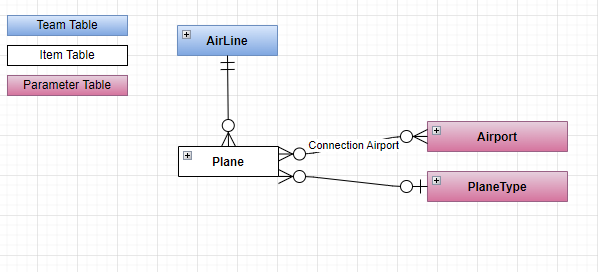
Create the relation Entity for Airport
- Open with Visual Studio 2022 the solution '...\MyFirstProject\DotNet\MyFirstProject.sln'.
- In '...\MyFirstProject\DotNet\MyCompany.MyFirstProject.Domain\Fleet\Entities' open class 'Plane.cs' and add 'Airport' declaration:
        /// <summary>
        /// Gets or sets the current airport.
        /// </summary>
        public virtual Airport CurrentAirport { get; set; }

        /// <summary>
        /// Gets or sets the current airport id.
        /// </summary>
        public int CurrentAirportId { get; set; }
Update Data
Update the ModelBuilder
- In '...\MyFirstProject\DotNet\MyCompany.MyFirstProject.Infrastructure.Data\ModelBuilders', open class 'PlaneModelBuilder.cs' and add 'Airport' relationship:
/// <summary>
/// Create the model for planes.
/// </summary>
/// <param name="modelBuilder">The model builder.</param>
private static void CreatePlaneModel(ModelBuilder modelBuilder)
{
    ...
    modelBuilder.Entity<Plane>().HasOne(x => x.CurrentAirport).WithMany().HasForeignKey(x => x.CurrentAirportId)
}
Update the DataBase
- In VSCode (folder MyFirstProject) press F1
- Click "Tasks: Run Tasks".
- Click "Database Add migration SqlServer" if you use SqlServer or "Database Add migration PostGreSql" if you use PostGerSql.
- Set the name "UpdateFeaturePlaneAirport" and press enter.
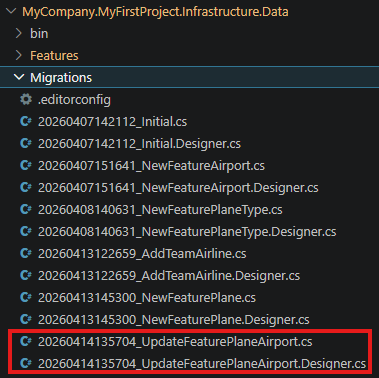
- Verify new file 'xxx_UpdateFeaturePlaneAirport.cs' is created on '...\MyFirstProject\DotNet\MyCompany.MyFirstProject.Infrastructure.Data\Migrations' folder, and file is not empty.
- In VSCode Run and Debug "DotNet DeployDB"
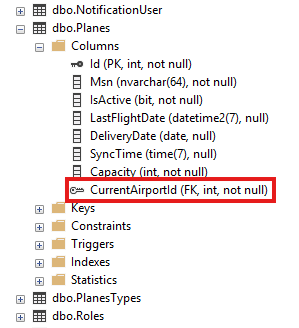
- Verify now if the table is updated (column 'CurrentAirportId' was added)
Create the relation Entity for PlaneType
- Now let's do the same steps for PlaneType
- In '...\MyFirstProject\DotNet\MyCompany.MyFirstProject.Domain\Fleet\Entities' open class 'Plane.cs' and add 'PlaneType' declaration:
/// <summary>
/// Gets or sets the plane type.
/// </summary>
public virtual PlaneType PlaneType { get; set; }

/// <summary>
/// Gets or sets the plane type id.
/// </summary>
public int? PlaneTypeId { get; set; }
Update Data
Update the ModelBuilder
- In '...\MyFirstProject\DotNet\MyCompany.MyFirstProject.Infrastructure.Data\ModelBuilders', open class 'PlaneModelBuilder.cs' and add 'PlaneType' relationship:
/// <summary>
/// Create the model for planes.PlaneTypeId
/// </summary>
/// <param name="modelBuilder">The model builder.</param>
private static void CreatePlaneModel(ModelBuilder modelBuilder)
{
    ...
    modelBuilder.Entity<Plane>().HasOne(x => x.PlaneType).WithMany().HasForeignKey(x => x.PlaneTypeId);

}
Update the DataBase
- In VSCode (folder MyFirstProject) press F1
- Click "Tasks: Run Tasks".
- Click "Database Add migration SqlServer" if you use SqlServer or "Database Add migration PostGreSql" if you use PostGerSql.
- Set the name "UpdateFeaturePlanePlaneType" and press enter.
- Verify new file 'xxx_UpdateFeaturePlanePlaneType.cs' is created on '...\MyFirstProject\DotNet\MyCompany.MyFirstProject.Infrastructure.Data\Migrations' folder, and file is not empty.
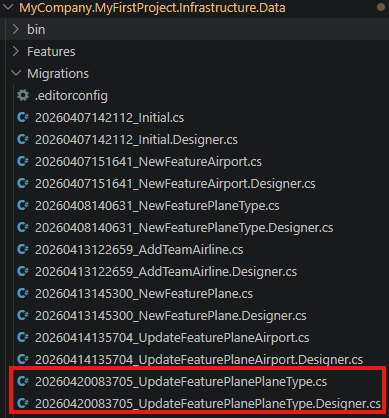
- In VSCode Run and Debug "DotNet DeployDB"
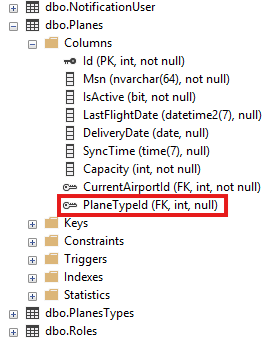
- Verify now if the table is updated (column 'PlaneTypeId' was added)
Create the DTO
Using BIAToolKit
- Start the BIAToolKit and go on "Modify existing project" tab*
- Set the projects parent path and choose your project
- Open "DTO Generator" tab
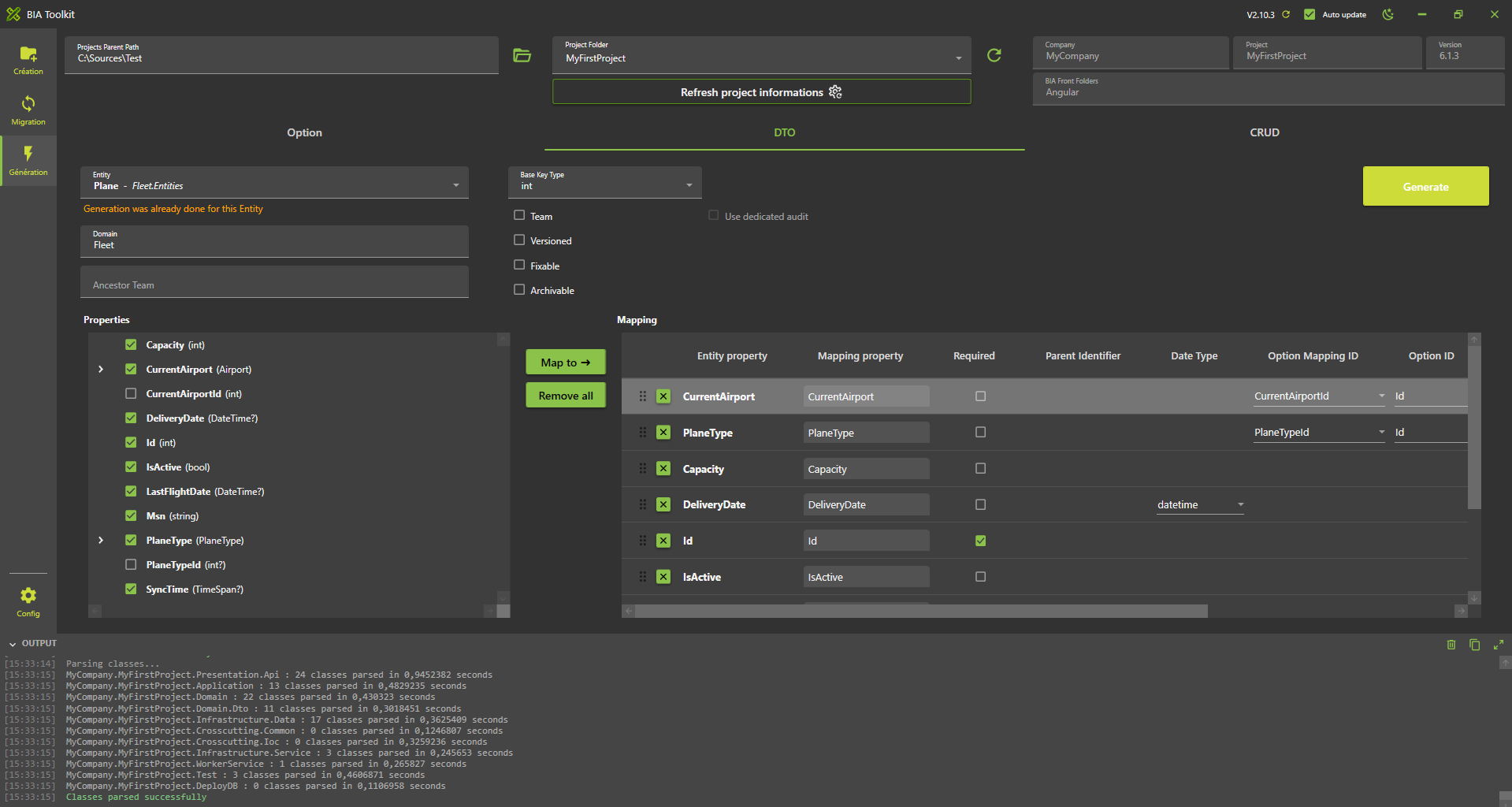
- Choose entity: Plane
- Information message appear: "Generation was already done for this Entity"
- Verify all properties are correctly selected and mapped
- Check the property PlaneType and click on "Map To" button
- New mapping Airport and PlaneType with mapping Type "Option" should be added on the list
- WARNING : Make sure to have a backup of your previous Mapper before generating
- Click on generate button
Generate CRUD
Using BIAToolKit
- Start the BIAToolKit and go on "Modify existing project" tab*
- Set the projects parent path and choose your project
- Open "CRUD Generator" tab
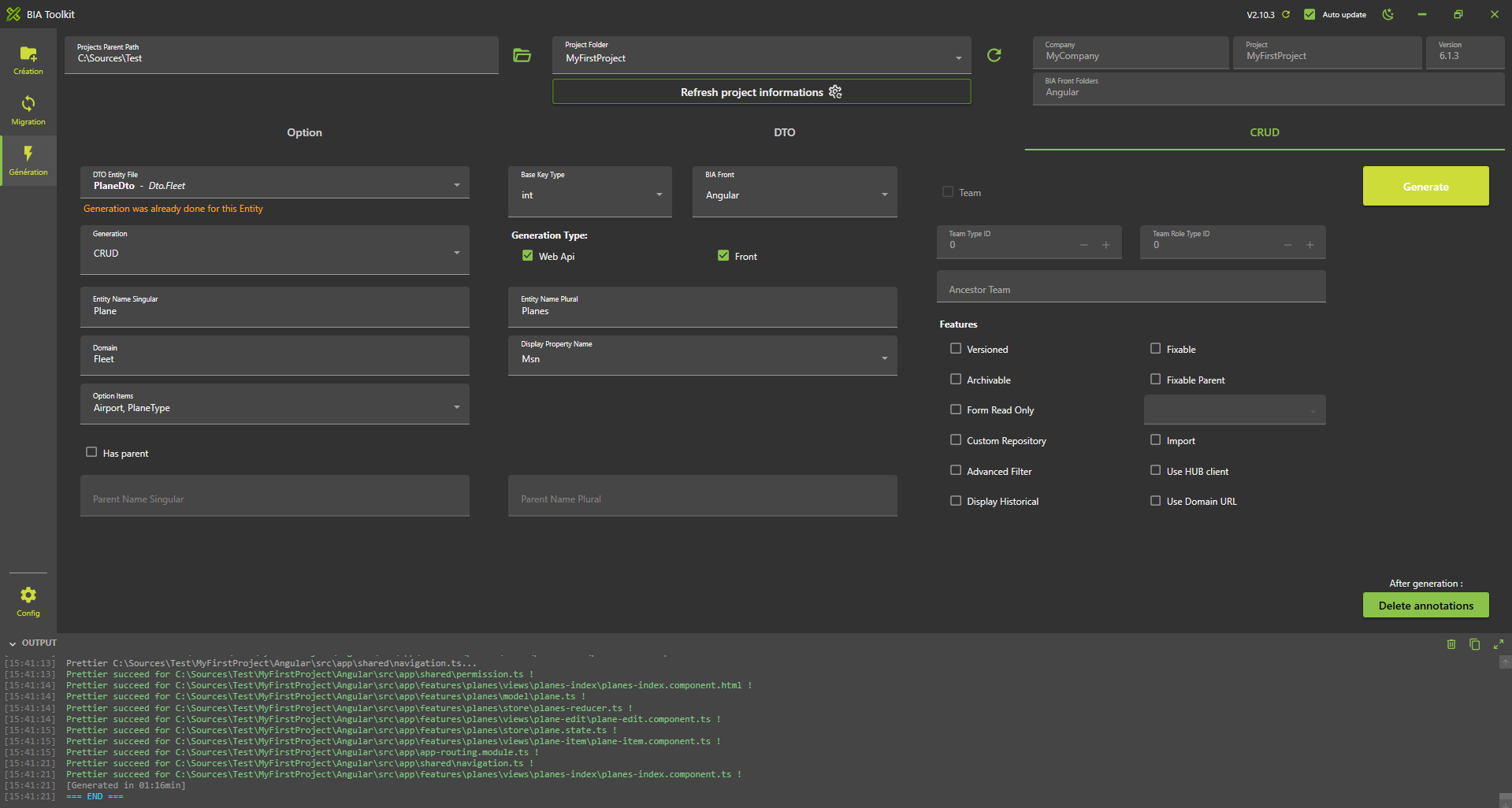
- Choose Dto file: PlaneTypeDto.cs
- Information message appear: "Generation was already done for this Dto file"
- On option item list, check "Airport" and "PlaneType" value
- Verify all properties are correctly selected
- Click on generate button
Complete generated files
Update the Mapper 'PlaneMapper': Re-add custom code from your previous backup if any
Check DotNet generation
- Return to Visual Studio 2022 on the solution '...\MyFirstProject\DotNet\MyFirstProject.sln'.
- Rebuild solution
- Project will be run, launch IISExpress to verify it.
Check Angular generation
- Run VS code and open the folder 'C:\Sources\Test\MyFirstProject\Angular'
- Launch command on terminal
npm start
Complete traduction
Open '...\MyFirstProject\Angular\src\assets\i18n\app\en.json' and add:
  "plane": {
    ...
    "currentAirport": "Current airport",
    "planeType" : "Plane Type"
  },
Open '...\MyFirstProject\Angular\src\assets\i18n\app\es.json' and add:
  "plane": {
    ...
    "currentAirport": "Aeropuerto actual",
    "planeType": "Tipo de avión"
  },
Open '...\MyFirstProject\Angular\src\assets\i18n\app\fr.json' and add:
  "plane": {
    ...
    "currentAirport": "Aéroport actuel",
    "planeType": "Type d'avion"
  },
Test
- Open web navigator on address: http://localhost:4200/ to display front page
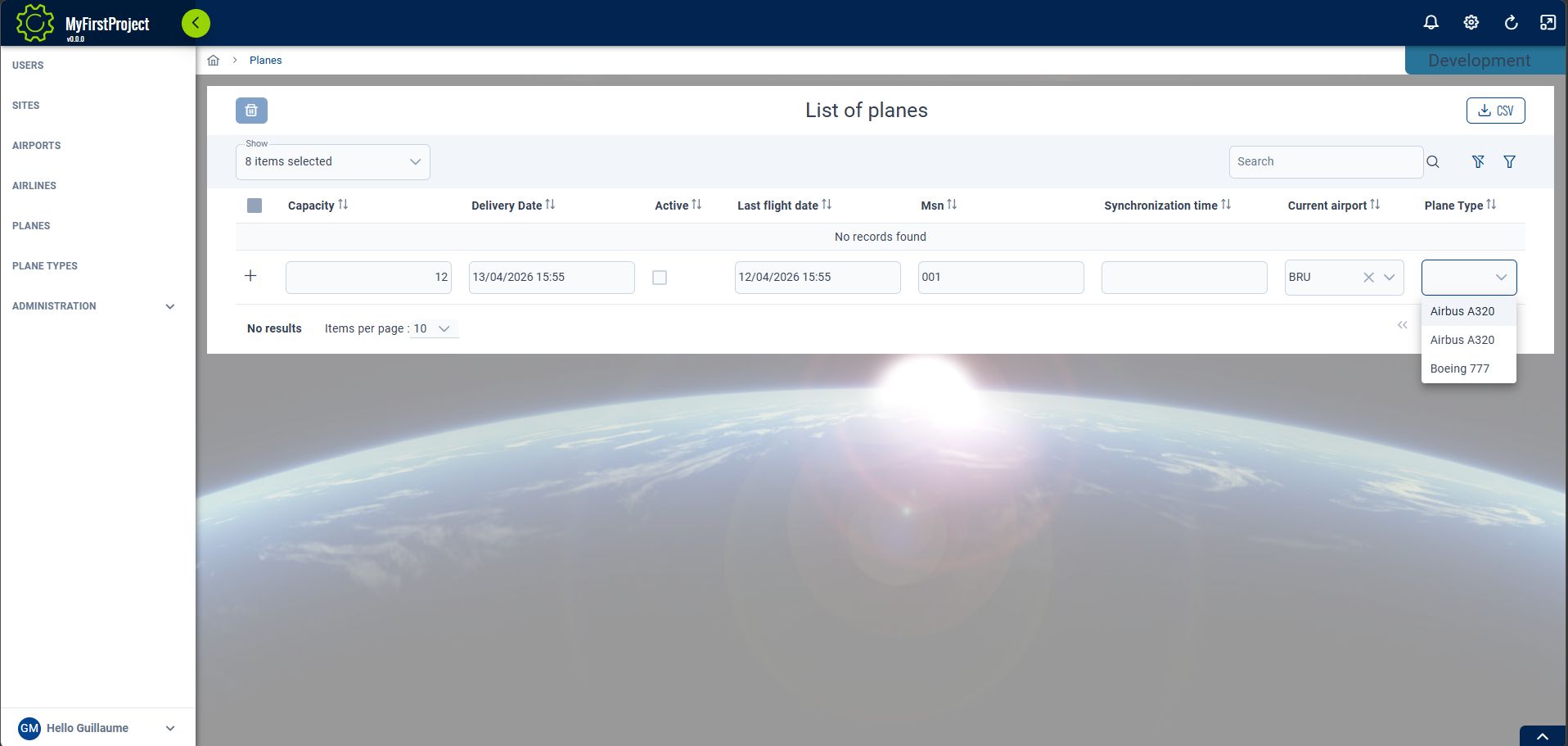
- Open 'Plane' page and verify label has been replaced and Airport option is available on the list