Create Engine Child
We will create in first the child feature 'Engine'.
Prerequisites
CRUD Parent creation
Follow steps from the section Create your first CRUD to create the parent's child.
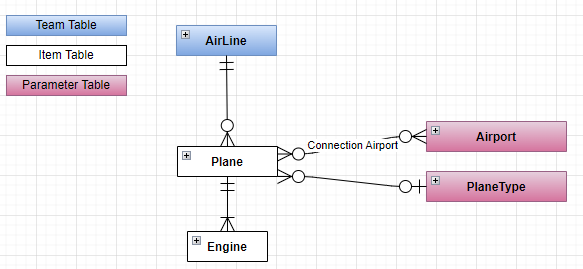
We will assume that the parent is a Plane for this documentation.
Create the Model
- In '...\MyFirstProject\DotNet\MyCompany.MyFirstProject.Domain\Fleet\Entities'
- Create empty class 'Engine.cs' and add following:
Engine.cs
// <copyright file="Engine.cs" company="MyCompany">
// Copyright (c) MyCompany. All rights reserved.
// </copyright>

namespace MyCompany.MyFirstProject.Domain.Fleet.Entities
{
    using BIA.Net.Core.Domain;
    using BIA.Net.Core.Domain.Entity.Interface;
    using MyCompany.MyFirstProject.Domain.Fleet.Entities;

    /// <summary>
    /// The engine entity.
    /// </summary>
    public class Engine : VersionedTable, IEntity<int>
    {
        /// <summary>
        /// Gets or sets the engine Id.
        /// </summary>
        public int Id { get; set; }

        /// <summary>
        /// Gets or sets the engine serial number.
        /// </summary>
        public string Serial_Number { get; set; }

        /// <summary>
        /// Gets or sets the plane Id.
        /// </summary>
        public int PlaneId { get; set; }

        /// <summary>
        /// Gets or sets the plane.
        /// </summary>
        public virtual Plane Plane { get; set; }
    }
}
- In Plane.cs, add Engine declaration
Plane.cs
/// <summary>
/// Gets or sets the list of engines.
/// </summary>
        public ICollection<Engine> Engines { get; set; }
Update Data
Update DataContext
- Go in '...\MyFirstProject\DotNet\MyCompany.MyFirstProject.Infrastructure.Data' folder.
- Open DataContext.cs and add your new
DbSet<Engine>:
DataContext.cs
/// <summary>
/// Gets or sets the Engine DBSet.
/// </summary>
public DbSet<Engine> Engines { get; set; }
Update the ModelBuilder
- In '...\MyFirstProject\DotNet\MyCompany.MyFirstProject.Infrastructure.Data\ModelBuilders\PlaneModelBuilder.cs' add :
PlaneModelBuilder.cs
public static void CreateModel(ModelBuilder modelBuilder)
{
    ...
    CreateEngineModel(modelBuilder);
}

/// <summary>
/// Create the model for engines.
/// </summary>
/// <param name="modelBuilder">The model builder.</param>
private static void CreateEngineModel(ModelBuilder modelBuilder)
{
    modelBuilder.Entity<Engine>().HasOne(x => x.Plane).WithMany(x => x.Engines).HasForeignKey(x => x.PlaneId);
}
Update the Database
- In VSCode (folder MyFirstProject) press F1
- Click "Tasks: Run Tasks".
- Click "Database Add migration SqlServer" if you use SqlServer or "Database Add migration PostGreSql" if you use PostGerSql.
- Set the name "AddEngines" and press enter.
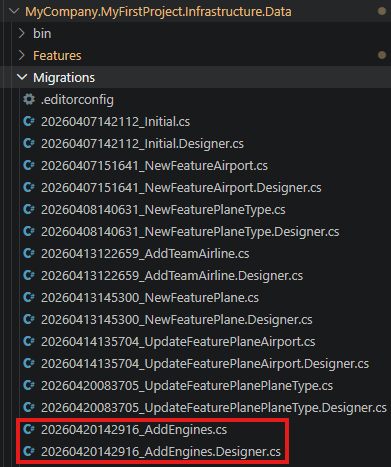
- Verify new file 'xxx_AddEngines.cs' is created on '...\MyFirstProject\DotNet\MyCompany.MyFirstProject.Infrastructure.Data\Migrations' folder, and file is not empty.
- In VSCode Run and Debug "DotNet DeployDB"
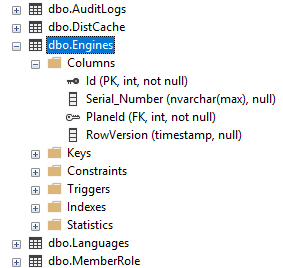
- Verify 'Engines' table is created in the database.
Generate DTO
Using BIAToolKit
- Launch the BIAToolKit, go to the tab "Modify existing project".
- Set your parent project path, then select your project folder.
- Go to "DTO Generator" tab.
- Fill the form as following :
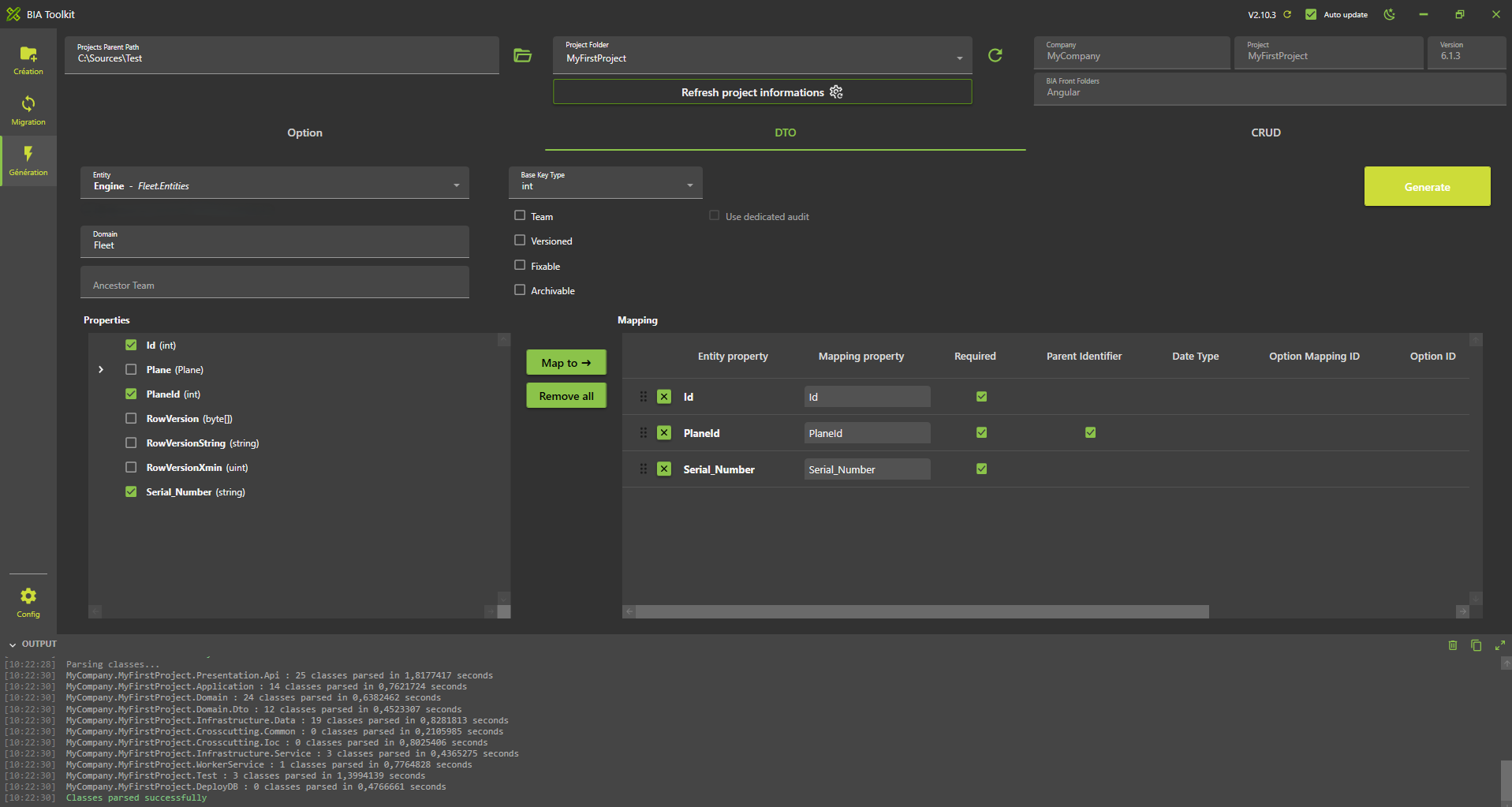
- Then, click on Generate button !
Generate CRUD
Using BIAToolKit
- Launch the BIAToolKit, go to the tab "Modify existing project".
- Set your parent project path, then select your project folder.
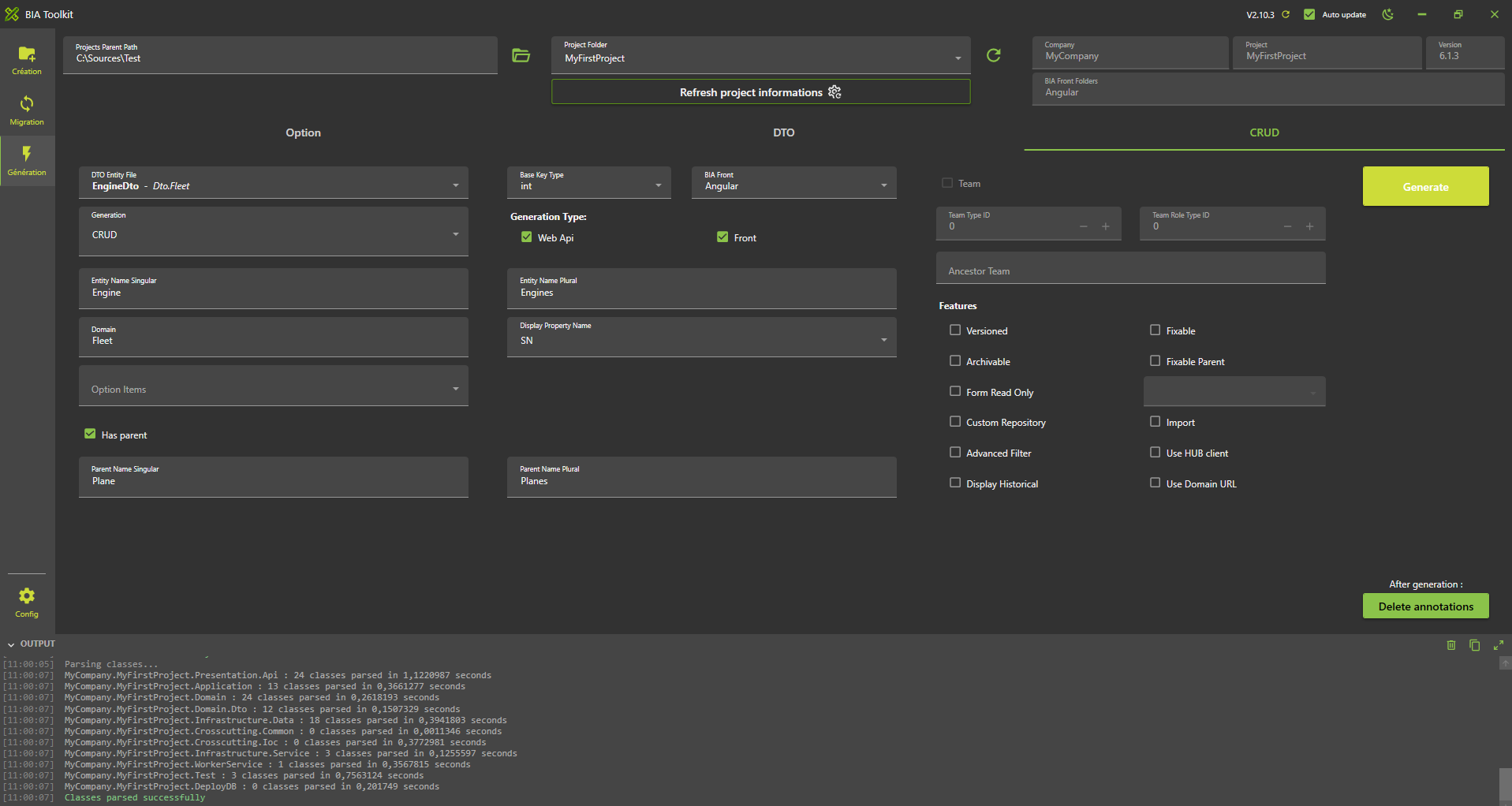
- Go to "CRUD Generator" tab.
- Fill the form as following
- Based on this informations, the BIAToolKit will detect automatically the parent's folders to generate the new CRUD child. Make sure to fill the correct informations without misspelling.
- Then click on Generate button.
Complete traductions
- Open '...\MyFirstProject\Angular\src\assets\i18n\app\en.json' and add:
en.json
"app": {
    ...
    "engines": "Engines"
  },
  "plane": {
    ...
    "engines" : "Engines"
  },
  "engine": {
    "add": "Add engine",
    "edit": "Edit engine",
    "listOf": "List of engines",
    "plane": "Plane",
    "serial_Number": "Serial Number"
  }
Open '...\MyFirstProject\Angular\src\assets\i18n\app\es.json' and add:
es.json
  "app": {
    ...
    "engines": "Motores"
  },
  "plane": {
    ...
    "engines" : "Motores"
  },
  "engine": {
    "add": "Añadir motor",
    "edit": "Editar motor",
    "listOf": "Lista de motores",
    "plane": "Avión",
    "serial_Number": "Número de serie"
  }
Open '...\MyFirstProject\Angular\src\assets\i18n\app\fr.json' and add:
  "app": {
    ...
    "engines": "Moteurs"
  },
    "plane": {
    ...
    "engines" : "Moteurs"
  },
  "engine": {
    "add": "Ajouter moteur",
    "edit": "Modifier moteur",
    "listOf": "Liste des moteurs",
    "plane": "Avion",
    "serial_Number": "Numéro de série"
  }
Test
- Run the DotNet solution.
- Launch
npm startin Angular folder. - Go to http://localhost:4200/
- Navigate to the plane list.
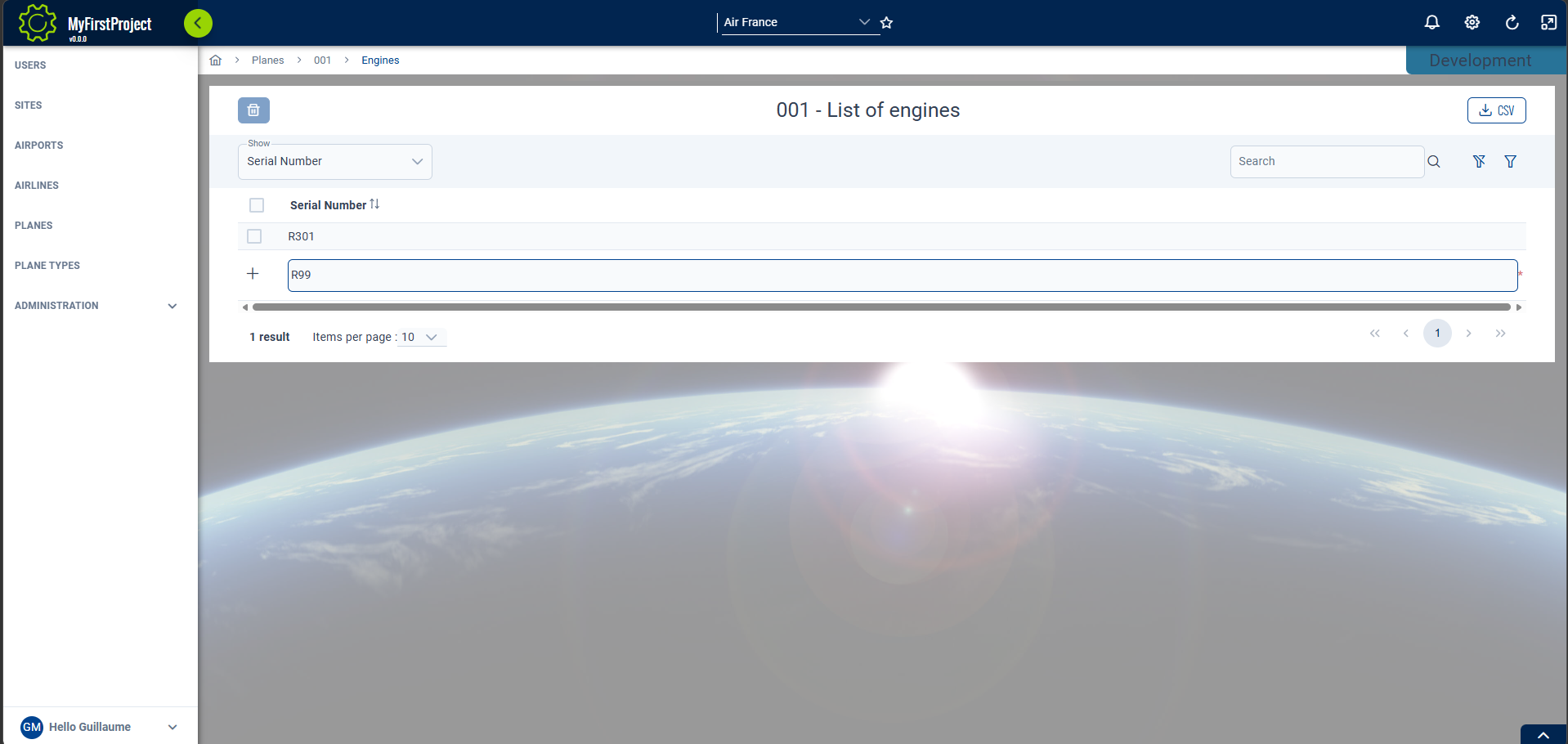
- Select one plane (create one if needed) and click on the button "Engines"
- You should access to the engines list of the plane.